
— By Akanksha Giri & Anish Bogati
Overview
In May 2026, security researcher Chaotic Eclipse (also known as Nightmare Eclipse) publicly disclosed three new Windows zero-day vulnerabilities dubbed YellowKey, GreenPlasma, and MiniPlasma, releasing a proof-of-concept (PoC) exploit for each. The timing was deliberate: all three dropped in the five days immediately following Microsoft's May 2026 Patch Tuesday (May 12), ensuring no official fix would be available for weeks.
- YellowKey and GreenPlasma were published on May 13, 2026 — the day after Patch Tuesday.
- MiniPlasma followed on May 17, 2026.
YellowKey is a BitLocker bypass vulnerability that can potentially provide access to encrypted drives by leveraging weaknesses in the Windows Recovery Environment (WinRE). GreenPlasma is a privilege escalation vulnerability affecting the Windows CTFMON framework that can allow an attacker to obtain SYSTEM-level privileges. MiniPlasma targets the Windows Cloud Files Mini Filter Driver (cldflt.sys) and can similarly be leveraged to achieve SYSTEM-level access on fully patched systems.
On April 3, 2026, the same actor published BlueHammer, a local privilege escalation flaw, followed by RedSun and UnDefend on April 16. RedSun abuses Defender's remediation logic to escalate to SYSTEM while UnDefend silently degrades Defender's functionality and disrupts signature updates, leaving the endpoint appearing healthy. We previously analyzed those vulnerabilities in a separate blog, walking through their technical analysis and detection through Guardsix.
Affected platforms
- YellowKey — Windows 11, Windows Server 2022, and Windows Server 2025. Windows 10 is not affected.
- GreenPlasma — Windows 11, Windows Server 2022, and Windows Server 2025.
- MiniPlasma — Windows 11, Windows Server 2022, and Windows Server 2025. Windows 10 does not appear to be affected, though the researcher claims all Windows versions are likely vulnerable.
YellowKey
YellowKey, tracked as CVE-2026-45585 (CVSS 6.8) is a publicly disclosed Windows zero-day vulnerability that bypasses BitLocker drive encryption by abusing behavior in the Windows Recovery Environment (WinRE).
With only brief physical access to a device, an attacker can drop into an unrestricted command prompt that has full access to a drive BitLocker is supposed to keep encrypted — no recovery key, password, or PIN required in the default configuration. It affects Windows 11 and Windows Server 2022 and 2025; Windows 10 is not affected, because its WinRE component ships without the vulnerable functionality.
Why it works
Windows Recovery Environment (WinRE) is a recovery environment that can repair common causes of unbootable operating systems.
WinRE sits in a privileged spot in the boot chain. On a TPM (Trusted Platform Module)-only BitLocker deployment, the TPM automatically releases the BitLocker volume master key to WinRE during boot, without requiring a PIN or recovery key. This is by design; it allows recovery tools to access and repair the protected drive when the main operating system won't start. YellowKey takes advantage of that same setup: by the time attacker code is runs inside WinRE, the drive is already decrypted and sitting there unlocked.
The vulnerable component is autofstx.exe, the FsTx Auto Recovery Utility (a Windows binary responsible for automatically recovering file-system transactions during startup). It is launched through the BootExecute registry value, a list of native-mode applications that the Session Manager (smss.exe) runs very early in boot, before most of the operating system and its security controls are initialized. Because autofstx.exe executes at this stage with high privilege, anything it processes is handled in a powerful, lightly guarded context.
autofstx.exe processes a folder named FsTx located under \System Volume Information on attached storage. By planting specially crafted Transactional NTFS (TxF) log files in that folder, an attacker forces WinRE to replay those transactions in that early-boot context. The replay deletes winpeshl.ini, the file that normally governs the recovery shell and with it gone, the environment falls back to handing the attacker a raw command prompt instead of the usual recovery interface.
Attack flow
- Prepare the payload. The attacker copies the crafted
FsTxfolder structure to\System Volume Information\FsTxon a USB stick (NTFS, FAT32, or exFAT all work). If they have the drive in hand, they can write the same structure directly to the device's EFI system partition, removing the need for any external media. - Boot into WinRE. They insert the USB (if used) and reboot the target into the Windows Recovery Environment or by interrupting the normal boot sequence.
- TPM releases the key. Because the hardware state still looks trusted, the TPM hands over the BitLocker decryption material automatically.
autofstx.exethen processes the plantedFsTxfiles, replays the TxF logs, and deleteswinpeshl.ini. - Trigger the shell. Holding the CTRL key spawns an unrestricted command prompt — with the BitLocker-protected volume already mounted and fully readable.
Once the USB is prepared, the entire sequence takes under two minutes on a physical machine.
GreenPlasma
GreenPlasma is a local privilege escalation vulnerability that abuses a trust relationship in ctfmon.exe, a Windows process that runs as SYSTEM in every interactive session to manage text input.
Why it works
GreenPlasma abuses something called section objects, a core kernel-level data structure representing a contiguous block of memory that can be shared across processes or mapped to a file. Normally, only SYSTEM can create section objects inside certain Object Manager directories. GreenPlasma breaks that assumption.
When a privileged service or driver reads from a directory it trusts, it doesn't double-check whether the content was put there by a legitimate process or an attacker. If an unprivileged user can plant something in that trusted location, the privileged component will just use it. That's the foothold GreenPlasma is after.
The exploit manipulates the registry via SetPolicyVal() (setting DisableLockWorkstation=1 among other things), abuses the CloudFiles policy structure to create a registry link redirect, and plants an Object Manager symbolic link just before the Winlogon desktop switch happens. By the end of it, CTFMON ends up interacting with the attacker's planted section.
Attack Flow
Phase 1 — Planting the Trap (Object Manager Symlink)
Before anything else, Greenplasma creates an invisible trap in the Windows Object Manager namespace:
\Sessions\<id>\BaseNamedObjects\CTF.AsmListCache.FMPWinlogon<id>
                          ↓ points to
             \BaseNamedObjects\CTFMON_DEAD
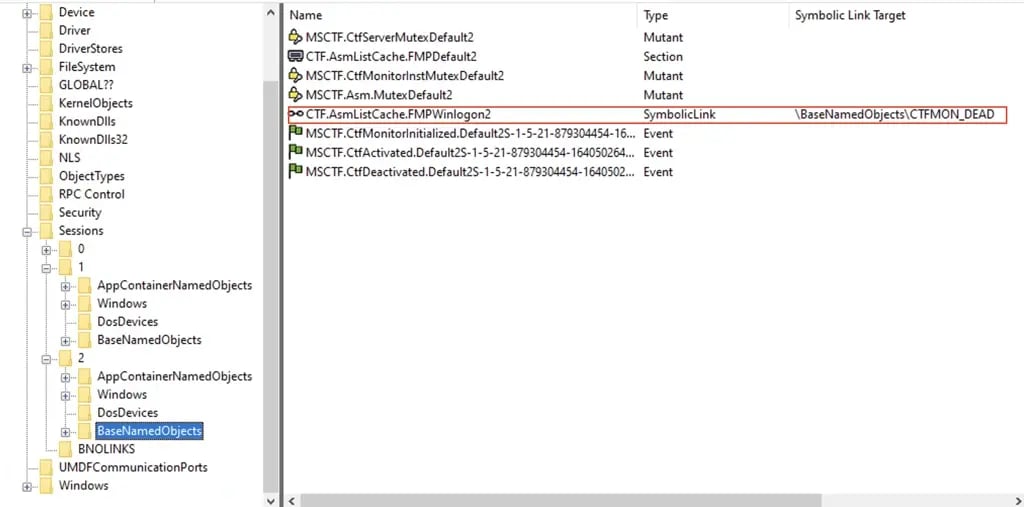
CTF.AsmListCache is a named section object that ctfmon.exe (the Windows text input service) looks for and opens periodically. By creating a symlink with that exact name before ctfmon does, any future open request for that section gets silently redirected to attacker’s own object.
Phase 2 — Triggering ctfmon (The Race)
As part of the exploitation process, GreenPlasma launches an elevated conhost.exe through UAC. This activates ctfmon.exe, which then accesses the shared object that the exploit has redirected through a registry symbolic link.
conhost elevation triggered
        ↓
ctfmon becomes active
        ↓
ctfmon opens CTF.AsmListCache...
        ↓
kernel follows symlink transparently
        ↓
Attacker gets a shared section handle with ctfmon
Greenplasma spins in a loop calling NtOpenSection until it succeeds, confirming ctfmon took the bait.
Phase 3 — Registry Symlink Pivot (The DACL Bypass)
The goal is to write a policy value to: HKCU\Software\Microsoft\Windows\CurrentVersion\Policies\System
But this key is protected, a medium integrity process can't write to it directly. So greenplasma uses a registry symlink to trick the kernel into resetting the DACL (Discretionary Access Control List) for it.
Windows has a registry key used by the Cloud Files API, HKCU\Software\Policies\Microsoft\CloudFiles. This key is far less protected than HKCU\Software\Microsoft\Windows\CurrentVersion\Policies\System. GreenPlasma takes advantage of this by creating a registry symlink that points from the CloudFiles key directly to ...\Policies\System. When GreenPlasma resets the permissions on the CloudFiles key, Windows follows the shortcut behind the scenes and actually resets the permissions on ...\Policies\System instead.
Once the DACL is reset, GreenPlasma immediately deletes the symlink key. With no symlink remaining and permissions now relaxed on ...\Policies\System, GreenpPlasma writes DisableLockWorkstation=1 directly to the target key and moves on.

Phase 4 — Locking the User Out
With DisableLockWorkstation=1 written under the Policies hive, GreenPlasma calls LockWorkstation(). The user is now trapped on the lock screen because the policy disables the unlock mechanism.
This forces Winlogon's ctfmon (running as SYSTEM) to become active and interact with the symlink that was planted in Phase 1, giving GreenPlasma a cross-privilege section handle.
MiniPlasma
MiniPlasma is another Windows local privilege escalation proof of concept abusing the Cloud Files platform to gain SYSTEM access and deliver an interactive SYSTEM shell on the user's desktop.
The exploit targets cldflt.sys, the Windows Cloud Files Mini Filter Driver, in a routine called HsmOsBlockPlaceholderAccess. It is essentially a revival of CVE-2020-17103, a flaw Google Project Zero's James Forshaw reported to Microsoft in September 2020, and that Microsoft supposedly fixed that December. According to Chaotic Eclipse, the original Project Zero proof-of-concept still works unchanged meaning the fix either never properly applied or was silently rolled back at some point. MiniPlasma is that old PoC, weaponized to spawn a SYSTEM shell.
Why it works
cldflt.sys is the kernel-side driver behind OneDrive's "Files On-Demand" feature. It manages placeholders, stub files that appear local in your folders, while their actual contents sit in the cloud. When you open one, the driver "hydrates" it, pulling the real data down. One of the driver's internal routines HsmOsBlockPlaceholderAccess, handles requests to temporarily block a placeholder file from being hydrated for a specific application — and it is here that the vulnerability exists.
The problem lies in how that routine creates a registry key. The routine performs registry operations using the driver's privileged security context rather than enforcing the access restrictions that would normally apply to the unprivileged caller. As a result, registry writes occur with SYSTEM authority instead of the permissions of the attacking user.
That gap matters because of where the key lands. The exploit steers the write into the HKEY_USERS\.DEFAULT hive, which is tied to the SYSTEM account, which a normal user can never write to directly. Gaining write access to a SYSTEM-owned region of the registry is the foothold that leads to full SYSTEM code execution.
Attack flow
Phase 1 – Creating a Cloud Files Placeholder
The attack begins by creating a Cloud Files placeholder file within a directory controlled by the attacker. Placeholder files are special files managed by the Windows Cloud Files platform, where the actual contents may reside remotely and are hydrated on demand.
The exploit requires a valid placeholder object so Cloud Files operations will traverse the vulnerable code path within the Cloud Files driver. Without a placeholder file, there is no object for the Cloud Files platform to operate on, and the attack cannot proceed.
Phase 2 – Triggering Cloud Files Driver Functionality
Once the placeholder exists, the exploit repeatedly invokes CfAbortOperation() from cldapi.dll using flags that cause the Cloud Files platform to block access to the placeholder.
Internally, this operation reaches functionality within cldflt.sys associated with HsmOsBlockPlaceholderAccess, where Cloud Files maintains information about blocked applications through registry operations. This registry interaction forms the foundation of the vulnerability.
Phase 3 – Winning the First Race Condition
This phase runs two actions in parallel. A background thread rapidly switches the calling thread's impersonation token between an anonymous token and a null token, while the main thread repeatedly calls CfAbortOperation() in a tight loop.
If the race is won, the Cloud Files driver incorrectly resolves the caller's user context and writes to HKEY_USERS\.DEFAULT instead of the attacker's user hive. Because the write is performed under the driver's privileged security context, a registry key is created at:
HKEY_USERS\.DEFAULT\Software\Policies\Microsoft\CloudFiles\BlockedApps
This gives the attacker controlled data inside a registry hive used by SYSTEM processes.
A monitoring thread watches the target registry path and immediately ends the phase once the privileged write is detected.
Phase 4 – Redirecting the Write Primitive
The registry write obtained in Phase 3 is not yet sufficient to target arbitrary locations.
Using access to the .DEFAULT Cloud Files policy key, the exploit modifies its permissions, removes the existing contents, and recreates the BlockedApps key as a registry symbolic link. Instead of pointing to its original location, the link redirects to:
HKEY_USERS\.DEFAULT\Volatile Environment
The exploit then reruns the race condition from Phase 3. When the Cloud Files driver performs another privileged write to BlockedApps, the registry symbolic link transparently redirects the operation into the Volatile Environment key.
This converts the original registry write primitive into a SYSTEM-authorized write within:
HKEY_USERS\.DEFAULT\Volatile Environment
As a result, the attacker gains control over environment variables that may later be used by privileged Windows processes.
A second monitoring thread watches the .DEFAULT hive and stops the race as soon as the redirected write is successfully observed.
Phase 5 – Poisoning the SYSTEM Environment
After obtaining the write primitive within .DEFAULT\Volatile Environment, the exploit first prepares the target registry location. It removes the registry symbolic link used during the previous phase, cleans up existing content beneath the target key, and modifies the security descriptor to ensure the attacker-controlled process can perform subsequent registry operations reliably. Only after this preparation does it overwrite the windir environment variable and redirect it to an attacker-controlled directory.
Phase 6 – Triggering Windows Error Reporting
The exploit creates a named pipe called \MiniPlasmaWERPipe and triggers the built-in scheduled task \Microsoft\Windows\Windows Error Reporting\QueueReporting which executes as NT AUTHORITY\SYSTEM.
When the Windows Error Reporting infrastructure later resolves the path to wermgr.exe, the poisoned environment causes it to execute the attacker's copy instead of the legitimate binary.
The exploit then waits for an incoming connection on the named pipe. If no connection arrives within a short period, the attack terminates and reports failure.
Phase 7 – Obtaining an Interactive SYSTEM Shell
The malicious wermgr.exe is now executing as SYSTEM. Upon startup, it verifies its privilege level and restores the windir environment variable back to its legitimate value to avoid disrupting normal Windows Error Reporting functionality.
The malicious process then connects back to the waiting named pipe. The pipe server retrieves the active desktop session identifier using GetNamedPipeServerSessionId() and duplicates the SYSTEM access token associated with the current process.
The duplicated token is modified to target the active user's desktop session and is subsequently used with CreateProcessAsUser() to launch a SYSTEM process attached directly to the interactive desktop.
The result is a fully interactive SYSTEM shell visible to the logged-in user without requiring credentials or a UAC prompt.
Cleanup and Reliability
After successful exploitation, the payload removes temporary artifacts including the malicious wermgr.exe, the fake System32 directory, and the modified environment values used during exploitation.
MiniPlasma relies on successfully winning two separate race conditions:
- Obtaining the initial privileged write into the Cloud Files policy location.
- Redirecting that write into
.DEFAULT\Volatile Environment using a registry symbolic link.Because both stages depend on timing, exploitation is not guaranteed to succeed on every attempt. Reliability varies between systems, although the public proof-of-concept reports consistent success under normal testing conditions.
Detection With GuardSix SIEM
- Windows
- Process Creation with Command line Auditing
- Registry Auditing
- Windows Sysmon
- To get started, you can use our sysmon baseline configuration.
- Following rules needs to be added for the detections to work
<!--SYSMON EVENT ID 7 : Image Load -->
<ImageLoaded condition="end with">cldapi.dll</ImageLoaded>
<!--SYSMON EVENT ID 12, 13 : Auditing Registry -->
<TargetObject condition="contains">\Policies\Microsoft\CloudFiles\BlockedApps</TargetObject>
<TargetObject condition="end with">\Volatile Environment\windir</TargetObject>
<TargetObject condition="end with">\Policies\System\DisableLockWorkstation</TargetObject>
<!--SYSMON EVENT ID 11 : File Create -->
<Rule groupRelation="and">
    <TargetFilename condition="end with">\wermgr.exe</TargetFilename>
    <TargetFilename condition="excludes">C:\Windows\System32\</TargetFilename>
    <TargetFilename condition="excludes">C:\Windows\SysWOW64\</TargetFilename>
</Rule>
<!--SYSMON EVENT ID 17 : Pipe Events-->
<PipeName condition="is">\MiniPlasmaWERPipe</PipeName>
Detection for YellowKey
Detect USB connection
This detection identifies the connection of USB storage devices to a Windows system.
YellowKey requires physical access to the target system. Public proof-of-concept exploits for YellowKey leverage removable media to interact with the Windows Recovery Environment (WinRE) and facilitate unauthorized access to BitLocker-protected drives. As a result, the connection of previously unseen or unauthorized USB storage devices may be a relevant indicator during incident response or threat hunting activities.
label=Registry label=Set label=Value
(target_object="HKLM\SOFTWARE\Microsoft\Windows Portable Devices\Devices\*"  OR target_object="HKLM\System\CurrentControlSet\Enum\SWD\WPDBUSENUM\*")
target_object="*USBSTOR*"
For environments that do not collect Sysmon registry telemetry, USB storage device connections can be detected using Windows Partition Diagnostic event.
norm_id= WinServer event_source="Microsoft-Windows-Partition" event_id= 1006 bustype=7
Detection for GreenPlasma and MiniPlasma
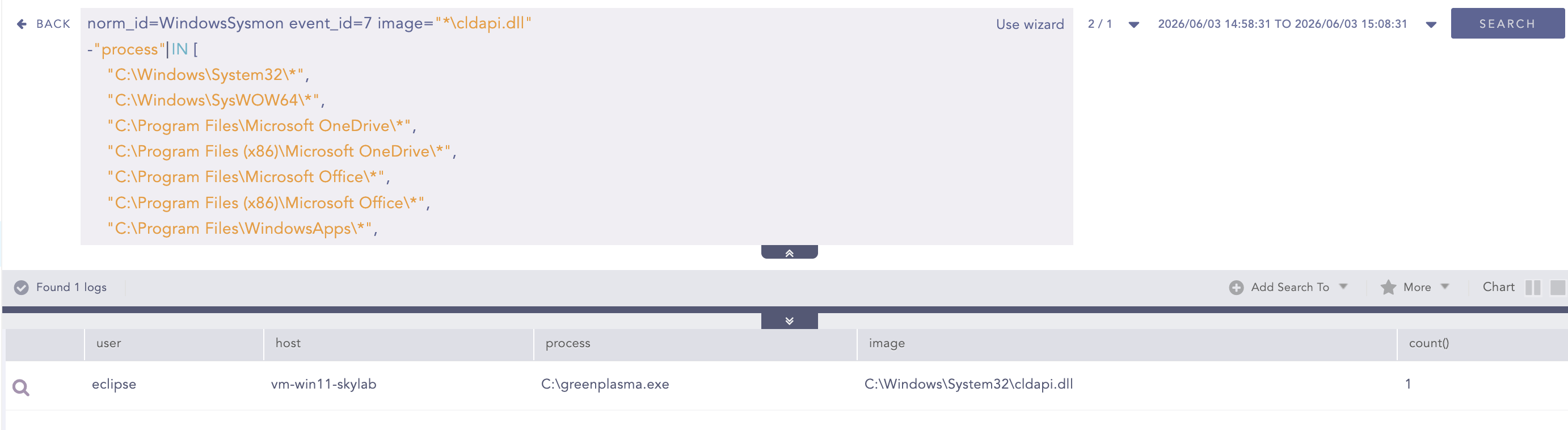
cldapi.dll Loaded by Untrusted Process
This hunting query identifies instances where cldapi.dll is loaded by processes that are not typically associated with Microsoft Cloud Files functionality or legitimate cloud synchronization applications.
Both GreenPlasma and MiniPlasma abuse functionality exposed through the Windows Cloud Files subsystem during exploitation. GreenPlasma leverages Cloud Files APIs, including functions such as CfAbortOperation, to trigger privileged operations that are later redirected through registry symbolic links. MiniPlasma similarly interacts with Cloud Files components and the Cloud Files Mini Filter Driver (cldflt.sys) as part of its privilege escalation chain. Because these exploits rely on Cloud Files functionality that is rarely used by ordinary applications, the loading of cldapi.dll by an unexpected process can serve as an early indicator of exploit execution or staging activity.
label=Image label=Load
image="*\cldapi.dll"
-"process" IN [
    "C:\Windows\System32\*",
    "C:\Windows\SysWOW64\*",
        "C:\Windows\explorer.exe",
        "C:\Windows\SystemApps\*",
    "C:\*\Microsoft*",
    "C:\Program Files\WindowsApps\*",
    "C:\Program Files\Google\Drive File Stream\*",
    "C:\*\Dropbox\*"
]
| chart count() by user, host, "process", image
Registry Symbolic Link Value Modified
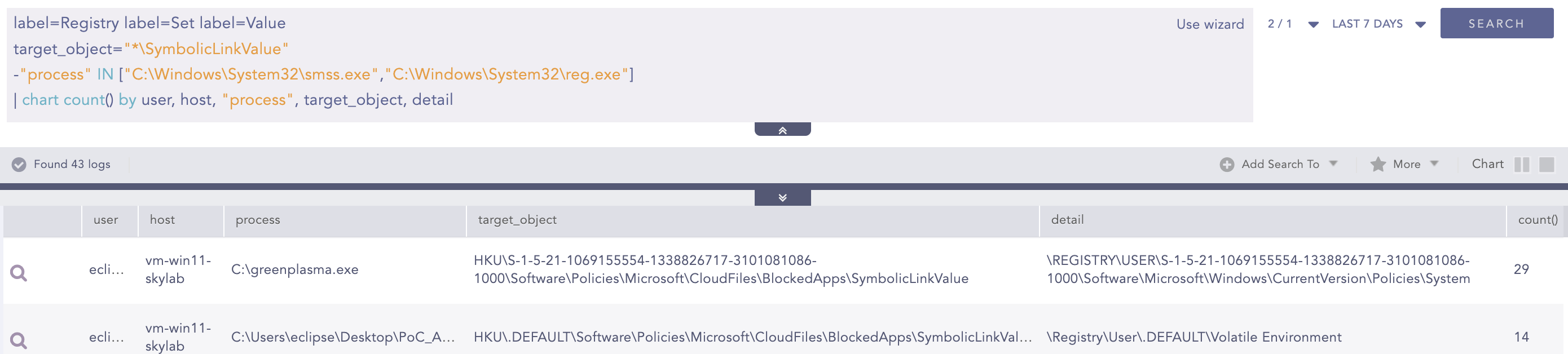
This detection identifies the creation of a registry symbolic link, a technique used by both the GreenPlasma and MiniPlasma. Both the exploits converts the BlockedApps registry subkey into a symbolic link (SymbolicLinkValue) that redirects registry writes to an attacker-controlled location.
- GreenPlasma redirects it into
HKCU\Software\Microsoft\Windows\CurrentVersion\Policies\System. - MiniPlasma redirects the write into
HKU\.DEFAULT\Volatile Environment.
They do this to hijack the privileged CloudFiles registry write. The CloudFiles policy code writes to BlockedApps with high privilege but without checking whether the caller is allowed to touch the real destination. The symlink steers that trusted write into a SYSTEM-controlled area that would normally be inaccessible to a low-privileged user.
label=Registry label=Set label=Value
target_object="*\SymbolicLinkValue"
-"process" IN ["C:\Windows\System32\smss.exe","C:\Windows\System32\reg.exe"]
CloudFiles Registry Key Creation
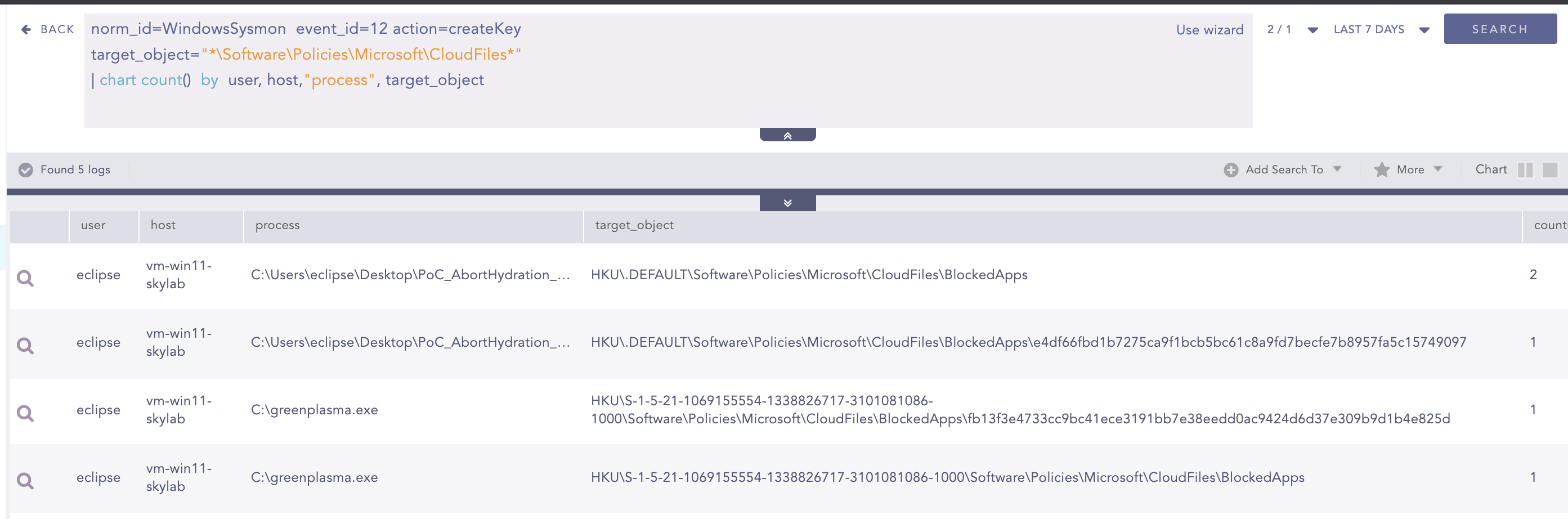
This hunting query can be used to investigate activity associated with the GreenPlasma and MiniPlasma by identifying the creation of registry keys within the CloudFiles policy registry path.
The two exploits target different registry hives:
- MiniPlasma abuses registry keys under:
HKU\.DEFAULT\Software\Policies\Microsoft\CloudFiles\ - GreenPlasma abuses registry keys under:
HKU\<User-SID>\Software\Policies\Microsoft\CloudFiles\
Both vulnerabilities leverage the CloudFiles policy mechanism to create a privileged registry write primitive. During exploitation, attackers create and manipulate keys within these paths before establishing registry redirection mechanisms and triggering privileged registry operations.
norm_id=WindowsSysmon event_id=12 action=createKey target_object="*\Software\Policies\Microsoft\CloudFiles*"
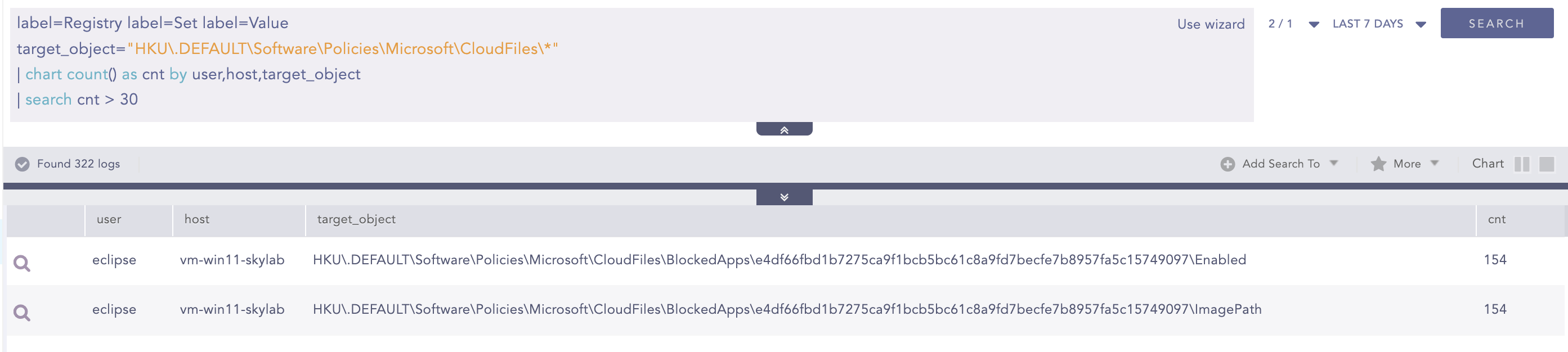
An analyst can use the query below to detect bursts of registry modification events performed by the MiniPlasma for TOCTOU.
label=Registry label=Set label=Value
target_object="HKU\.DEFAULT\Software\Policies\Microsoft\CloudFiles\*"
| chart count() as cnt by user,host,target_object
| search cnt > 30
Suspicious Registry Key Deletion
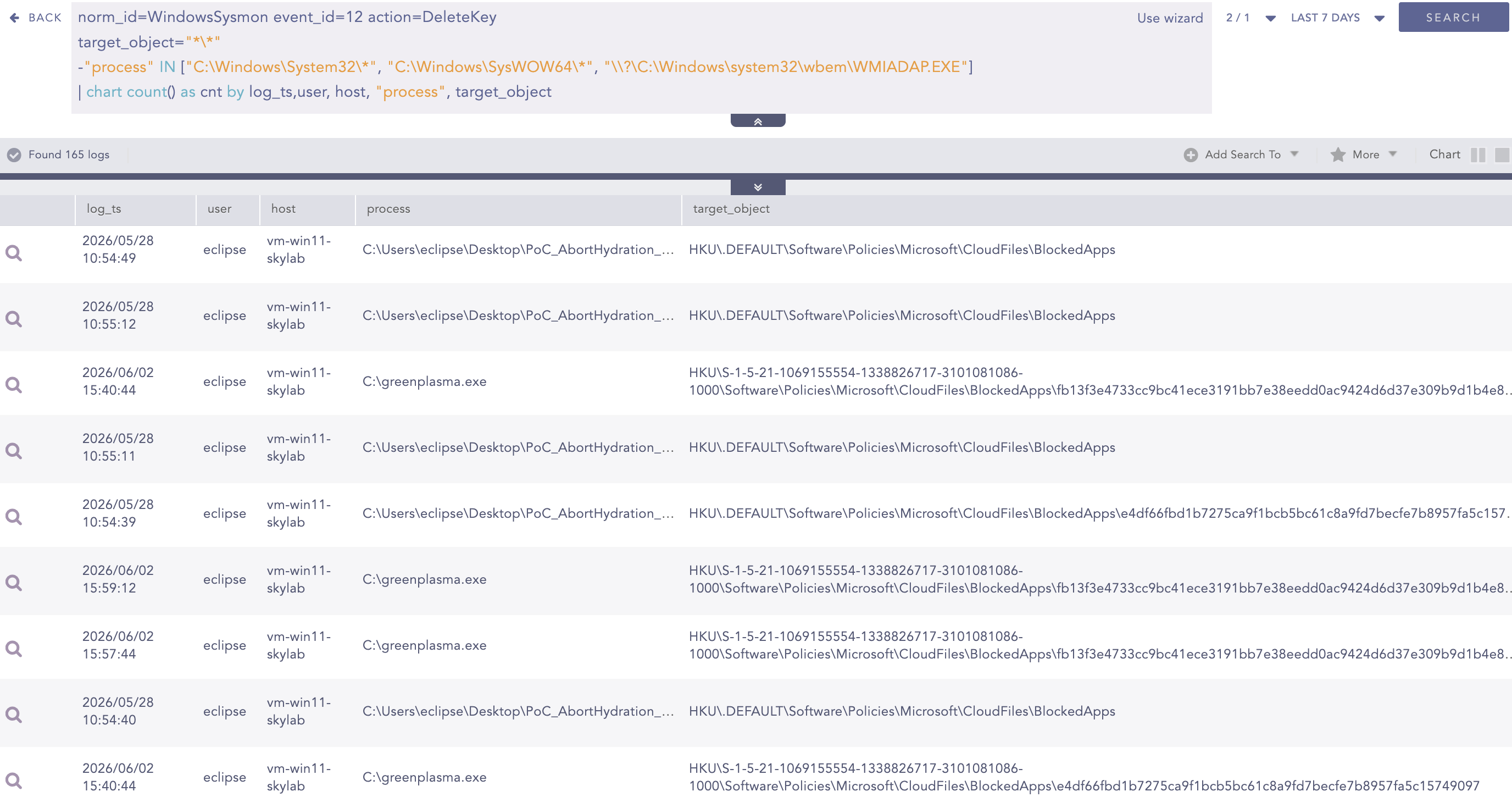
This detection identifies registry key deletion activity that is associated with exploit cleanup and anti-forensics behavior. Registry key removal is commonly used by malware and post-exploitation tools to delete temporary artifacts, remove traces of execution, and hinder forensic investigations.
Both the GreenPlasma and MiniPlasma privilege escalation exploits deletes registry keys as part of their post-exploitation cleanup routine. After achieving elevated privileges, the exploits remove registry-based artifacts used during the attack chain, including symbolic links.
norm_id=WindowsSysmon event_id=12 action=DeleteKey
target_object="*\*"
-"process" IN ["C:\Windows\System32\*", "C:\Windows\SysWOW64\*", "\\?\C:\Windows\system32\wbem\WMIADAP.EXE"]
Detection for GreenPlasma Specific Activity
DisableLockWorkstation Written to Policies\System
This hunting query identifies modifications to the DisableLockWorkstation registry value under the Windows ...\Policies\System registry path. Setting this value to 1 disables the workstation lock functionality for the current user.
After the GreenPlasma establishes a registry symbolic link and redirects a privileged CloudFiles registry write into HKCU\Software\Microsoft\Windows\CurrentVersion\Policies\System, it writes DisableLockWorkstation = 1. This change prevents the workstation from transitioning to the secure lock screen, ensuring the exploit remains on the interactive desktop where the CTFMON object manipulation and privilege escalation logic can continue to operate.
label=Registry label=Set label=Value
target_object="*\Software\Microsoft\Windows\CurrentVersion\Policies\System\DisableLockWorkstation"
detail="DWORD (0x00000001)"

The current Sysmon configuration published in the documentation portal monitors ...\Policies\System only under HKLM. GreenPlasma modifies the equivalent path under HKCU, which will not generate telemetry unless the recommended configuration update is applied as mentioned above.
Detection for MiniPlasma-Specific Activity
Environment Variable Poisoning
After redirecting the registry path, MiniPlasma writes a malicious value into HKU\.DEFAULT\Volatile Environment\windir. This causes future processes to resolve %windir% to an attacker-controlled location.
label=Registry label=Set label=Value
target_object="HKU\.DEFAULT\Volatile Environment\windir"
-detail="C:\Windows*"

Rogue WerMgr Staging & Execution
MiniPlasma places a malicious wermgr.exe in an attacker-controlled location and executes it instead of the legitimate Windows Error Reporting binary.
Detect suspicious wermgr.exe file creation:
label="File" label=Create label=Overwrite
file="wermgr.exe"
-path IN ["C:\Windows\System32*", "C:\Windows\SysWOW64*"]
Detect suspicious wermgr.exe execution:
label="Process" label=Create
"process"="*\wermgr.exe"
-file=WerMgr
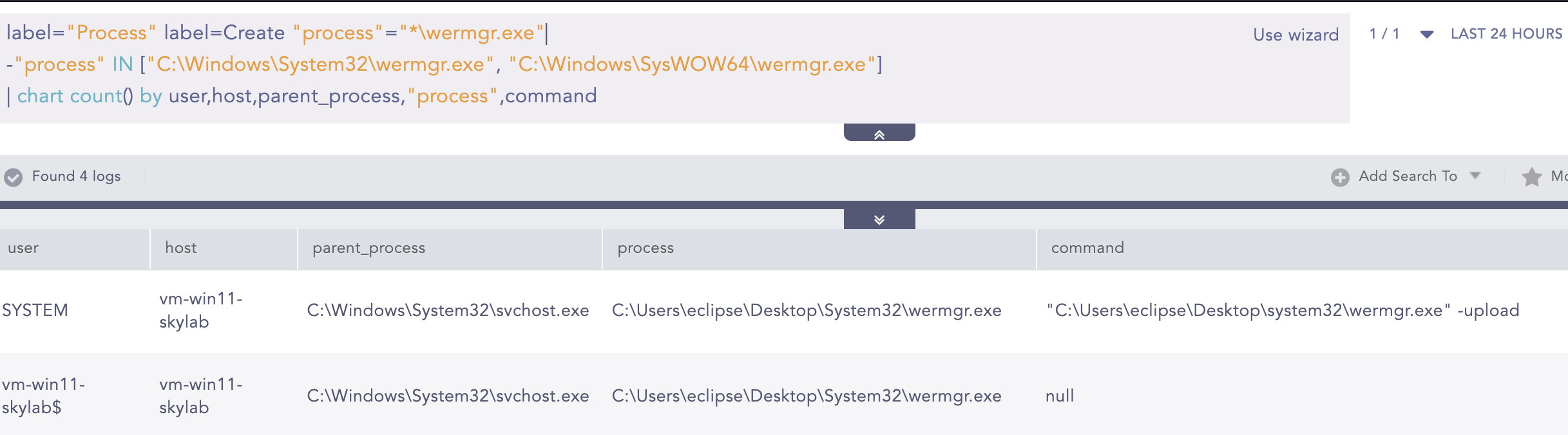
Any wermgr.exe created or executed outside the default Windows directories should be treated as suspicious and investigated further.
If Sysmon is not available, excluding the legitimate Windows paths is the most effective method to identify potentially malicious wermgr.exe executions.
label="Process" label=Create "process"="*\wermgr.exe"
-"process" IN ["C:\Windows\System32\wermgr.exe", "C:\Windows\SysWOW64\wermgr.exe"]
MiniPlasma Named Pipe Creation
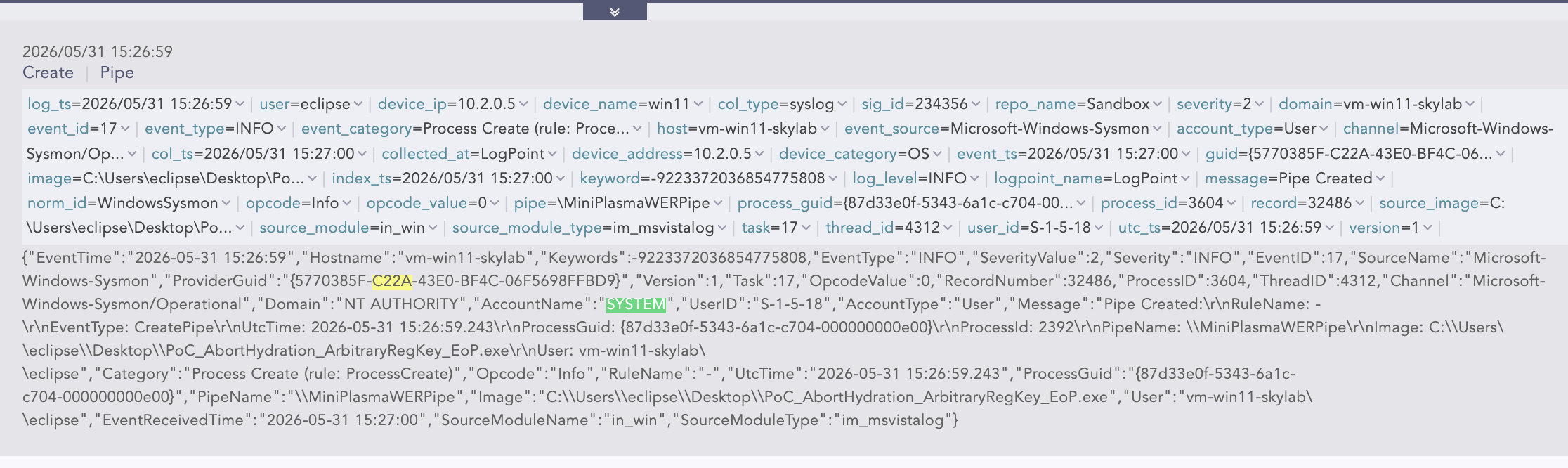
The malicious wermgr.exe creates a named pipe \MiniPlasmaWERPipe and executes under SYSTEM context inherited from the WER infrastructure.
norm_id=WindowsSysmon event_id=17 "pipe"="\MiniPlasmaWERPipe"
SYSTEM Shell Spawn
The final stage delivers a SYSTEM shell through the malicious wermgr.exe. The chain is: rogue wermgr.exe spawns conhost.exe, which then spawns cmd.exe, both under SYSTEM integrity.
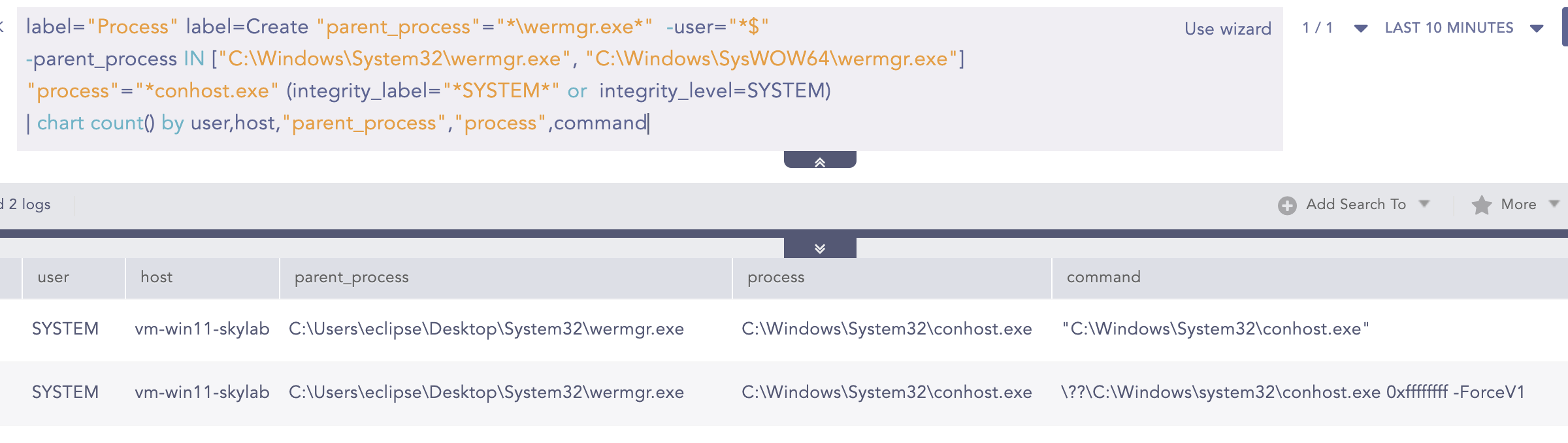
Detect rogue wermgr.exe spawning conhost.exe:
label="Process" label=Create
"parent_process"="*\wermgr.exe*"
-parent_process IN ["C:\Windows\System32\wermgr.exe", "C:\Windows\SysWOW64\wermgr.exe"]
"process"="*conhost.exe" (integrity_label="*SYSTEM*" or  integrity_level=SYSTEM)
| chart count() by user,host,"parent_process",parent_command,"process",command,event_id
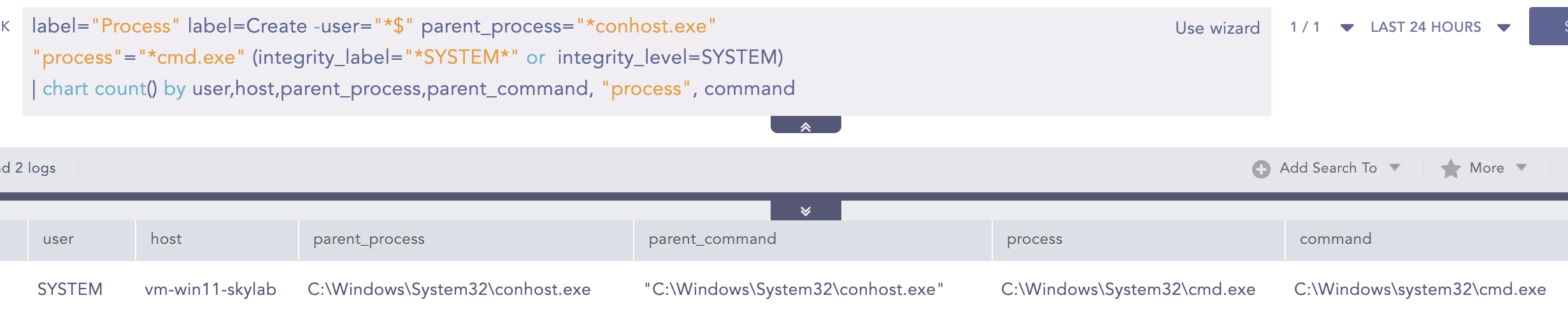
Detect conhost.exe spawning the SYSTEM cmd.exe:
label="Process" label=Create -user="*$" parent_process="*conhost.exe"
"process"="*cmd.exe" (integrity_label="*SYSTEM*" or  integrity_level=SYSTEM)
| chart count() by user,host,parent_process,parent_command, "process", command\
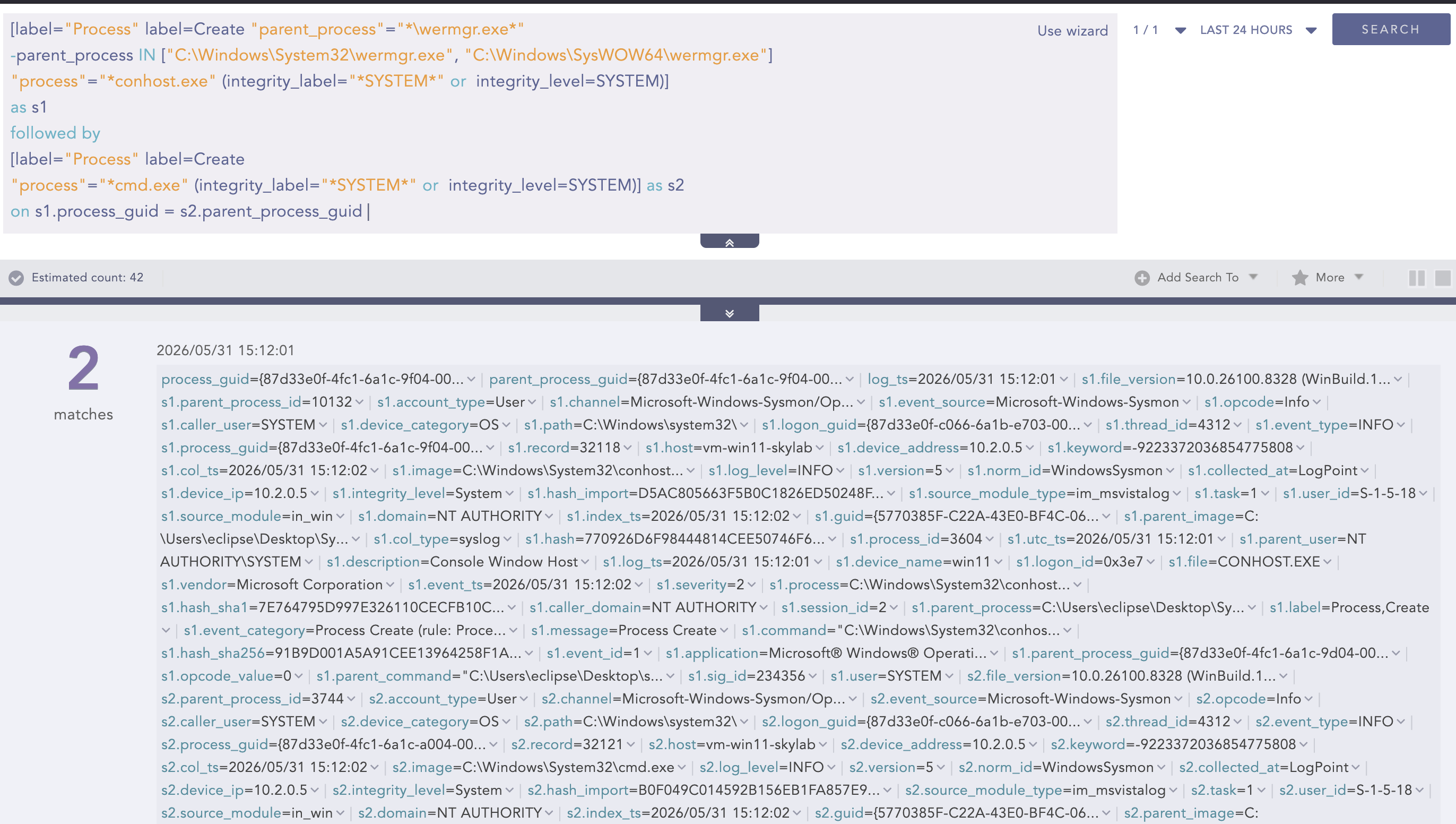
For environments with Sysmon, analysts can detect the complete SYSTEM shell spawn using this query.
[label="Process" label=Create "parent_process"="*\wermgr.exe*"
-parent_process IN ["C:\Windows\System32\wermgr.exe", "C:\Windows\SysWOW64\wermgr.exe"]
"process"="*conhost.exe" (integrity_label="*SYSTEM*" or  integrity_level=SYSTEM)]
as s1
followed by
[label="Process" label=Create
"process"="*cmd.exe" (integrity_label="*SYSTEM*" or  integrity_level=SYSTEM)] as s2 on s1.process_guid = s2.parent_process_guid
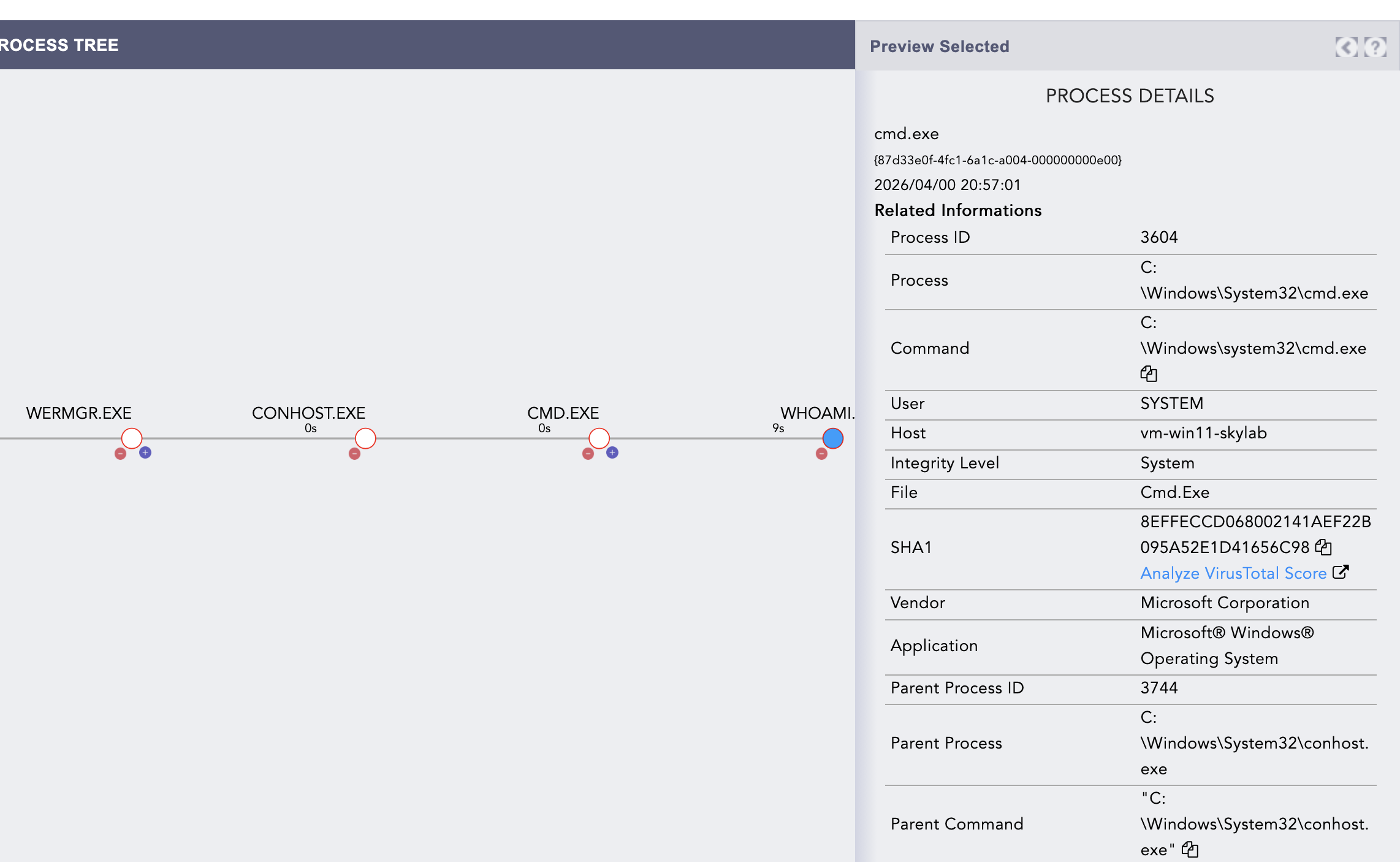
With Sysmon deployed, analysts can use the ProcessGuid of the spawned cmd.exe to pivot into the full process tree in Guardsix and trace the complete attack chain back to the original medium-integrity PoC process.
MiniPlasma and GreenPlasma both target the Cloud Filter driver infrastructure; the component Windows uses to support cloud-backed file handling in OneDrive and similar services and both abuse the undocumented CfAbortOperation/CfAbortHydration API to manipulate registry keys in ways that bypass normal access controls.
Recommendations and Mitigations
The recommendations below are intentionally mapped to the attack chains discussed in this article. Each control is designed to interrupt a specific stage of exploitation — preventing the exploit from reaching the vulnerable component, or limiting what an attacker can do after gaining execution. Where a control applies to more than one exploit, it is addressed together.
For MiniPlasma and GreenPlasma, there is currently no vendor-provided patch. For YellowKey, Microsoft has published a mitigation but not a permanent fix. Until updates become available, organisations should focus on controls that break the attack chain before privilege escalation occurs.
- Enforce a default-deny application control policy This is the single most effective control available across all three vulnerabilities. MiniPlasma and GreenPlasma both require execution before they can reach the vulnerable component — a default-deny policy blocks them at this stage regardless of what kernel primitive or trusted process they target. For YellowKey, preventing arbitrary code execution on the host reduces the risk of a staged payload being deployed to a decrypted volume. The policy does not need to recognise any of these exploits specifically; it stops unapproved execution by design.
- Restrict or disable Cloud Files components where not required Both MiniPlasma and GreenPlasma interact with Windows components tied to the Cloud Files infrastructure. MiniPlasma directly abuses
cldflt.sys, the Cloud Files Mini Filter Driver, through a race condition in the placeholder access mechanism. GreenPlasma's section-object manipulation can leverage paths and trust relationships involvingcldp.dll, the user-mode Cloud Files API. On endpoints where OneDrive Files On-Demand is not in use, disablingcldflt.sysand restricting access tocldp.dllremoves this shared attack surface. Validate that the driver is unloaded after the change and confirm the operational impact before deploying broadly. - Apply Microsoft's WinRE remediation script Specific to YellowKey. Microsoft released a script on 21 May 2026 that removes
autofstx.exefrom the WinREBootExecuteregistry value, closing the exploit's execution path through the recovery environment. Apply this to all Windows 11 and Windows Server 2025 systems, including Server Core. Windows Update can silently reintroduce the entry — build WinRE validation into your regular patch verification process. - Transition BitLocker from TPM-only to TPM+PIN Specific to YellowKey. In TPM-only mode, the BitLocker volume is already decrypted when the exploit shell spawns, giving the attacker immediate access to the drive. A startup PIN keeps the volume locked until the correct PIN is entered, even in WinRE. Enforce this via the Require additional authentication at startup policy in Intune or Group Policy, and prioritise mobile endpoints and devices operating in environments where unattended physical access is realistic.
- Restrict physical access and USB boot Specific to YellowKey. The exploit requires roughly 60 seconds of physical access and a standard USB device. Set BIOS/UEFI passwords, disable USB boot where operationally feasible, and review machines in public-facing or shared spaces that hold sensitive data or carry domain connectivity.
- Enforce least-privilege accounts and enable Credential Guard MiniPlasma and GreenPlasma operate from a standard user context and escalate to SYSTEM. Restricting local administrator rights to accounts that genuinely require them limits what an attacker can do before and after escalation. Enabling Credential Guard on supported hardware protects in-memory credential material from post-escalation harvesting, reducing the value of SYSTEM access even if it is obtained.
- Isolate affected hosts immediately on detection Applicable to all three. Once a SYSTEM-level shell is obtained — whether through MiniPlasma's race condition, GreenPlasma's section-object manipulation, or YellowKey's WinRE bypass — an attacker's next steps typically involve credential dumping and lateral movement. Containment takes priority over investigation. Once isolated, investigate how execution or physical access was obtained, review adjacent systems for lateral movement indicators, and treat any credential material accessible from that host as compromised.
- Monitor MSRC advisories and patch promptly Microsoft has confirmed it is investigating MiniPlasma. No CVE has been assigned to GreenPlasma. Apply vendor-provided fixes promptly when they become available, and continue treating application control and least privilege as the primary defensive layer until a permanent fix is in place.